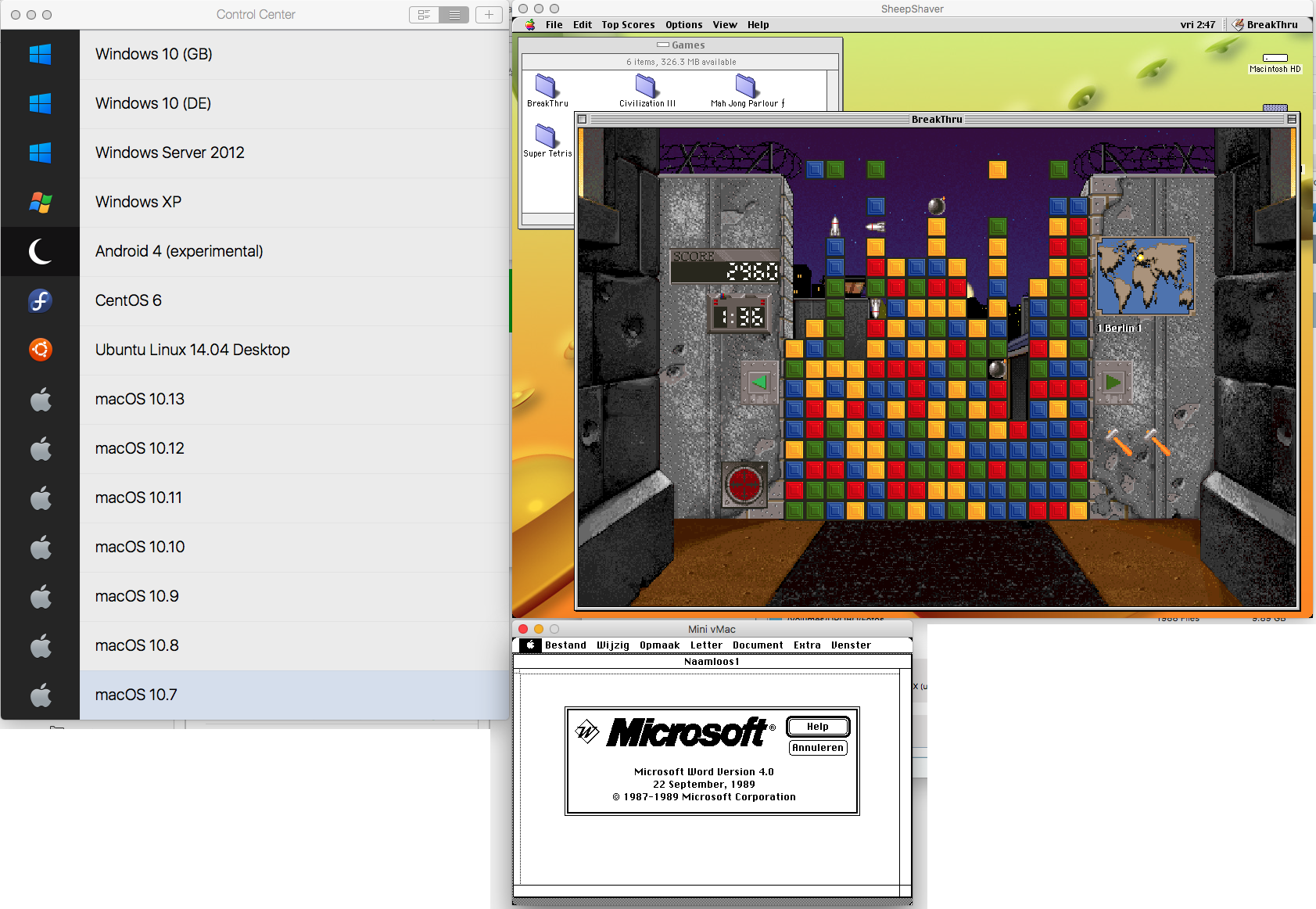
I wrote a short how-to on how to create CentOS 8 VM in Parallels Desktop for Mac, for local development and testing.
Showing posts with label Unix. Show all posts
Wednesday, 17 November 2021
Install CentOS 8 / Stream in Parallels Desktop #centos #parallels #macos
I wrote a short how-to on how to create CentOS 8 VM in Parallels Desktop for Mac, for local development and testing.
Sunday, 24 June 2018
Setup your local macOS X web server #apache #macos #macosx #webserver #localhost #webdevelopment
I've put together a page where I describe how you can setup a web development environment with two or more Apple Macs.
If you are a web developer working on Apple Macs, you sure do want to use the macOS X built-in web server, Apache, on all your Macs. And you want to be able to access your Sites folder, local web documents folder and your other Mac via HTTP.
I'll describe how to set it up on macOS High Sierra (10.13.5). If you're on a previous version of macOS X, not to worry, the steps to take are practically identical. Read on ...
If you are a web developer working on Apple Macs, you sure do want to use the macOS X built-in web server, Apache, on all your Macs. And you want to be able to access your Sites folder, local web documents folder and your other Mac via HTTP.
I'll describe how to set it up on macOS High Sierra (10.13.5). If you're on a previous version of macOS X, not to worry, the steps to take are practically identical. Read on ...
Labels:
Apple,
Mac OS X,
networking,
PHP,
programming,
server,
Unix,
Webserver
Friday, 30 March 2018
Friday, 23 October 2015
Apache vhost sort order on CentOS
I’ve written a page on how to control the order of Apache vhosts [on CentOS]. Just for reference.
Tuesday, 4 November 2014
Cool Unix-Shell Prompt
| At the shell-prompt in Terminal or some SSH session, copy/paste the following line: export PS1="\n\u@\h \A \w $ " and see the following nice shell-prompt: | You will have the following information always present:
|
Friday, 8 August 2014
Quickly transfer MySQL databases to a new server
Again I needed to transfer all data from one server to another. I knew I documented the transfer of MySQL databases somewhere (it's deep inside in the Replication-how-to) and decided to post them again here, so they're quicker to find.
One can transfer MySQL databases in various ways:
$ cd /var/mysql/ (or /var/lib/mysql/)
$ sudo zip -r ~/[database].zip [database]
Do this for each database that you want to copy. Then send all zip's per FTP to the new server.
Start an SSH session with the remote server and enter the following commands:
$ cd /var/mysql (or /var/lib/mysql/)
$ sudo unzip ~/[database].zip
$ sudo chown -R _mysql:admin [database]
For the above chown, check first with ls -l if _mysql:admin are the right owners. Then do this for each unzipped database.
Next, start Navicat and now you should see your databases in the connection of the new server. If not, you probably forgot to either do a Refresh Connection or the chown-command.
If you can access the tables and view data, good! If not, right click the table and choose Maintain->Repair Table->Quick or ->Extended and then try again.
One can transfer MySQL databases in various ways:
- Using mysqldump and zip + ftp
- Zip the database itself + ftp (you might need to repair the tables after unzipping)
- Use Navicat's Data Transfer module (not always good for tables with millions of records or blob data)
$ cd /var/mysql/ (or /var/lib/mysql/)
$ sudo zip -r ~/[database].zip [database]
Do this for each database that you want to copy. Then send all zip's per FTP to the new server.
Start an SSH session with the remote server and enter the following commands:
$ cd /var/mysql (or /var/lib/mysql/)
$ sudo unzip ~/[database].zip
$ sudo chown -R _mysql:admin [database]
For the above chown, check first with ls -l if _mysql:admin are the right owners. Then do this for each unzipped database.
Next, start Navicat and now you should see your databases in the connection of the new server. If not, you probably forgot to either do a Refresh Connection or the chown-command.
If you can access the tables and view data, good! If not, right click the table and choose Maintain->Repair Table->Quick or ->Extended and then try again.
Friday, 18 July 2014
ProFTPD with MySQL backend
I know there are already many pages about ProFTPD and MySQL, but all info I needed was scattered over the Internet.
Therefore I collected all info I needed and put into one page: Setup ProFTPD and MySQL.
Wednesday, 31 October 2012
Daily Script on Mac OS X Server did not clean up /tmp
Lately my /tmp folder was piling up with files (krb5cc*) without any signals that these files were regularly deleted. A bit of googling showed that these come from the Open Directory Server, but that's something I cannot control. So I went to investigate why the daily script would not delete them. I googled a bit again and found out where the parameter file for the daily, weekly and monthly cleanup-scripts is located: /etc/defaults/periodic.conf. There, I found these settings for /tmp :
# 110.clean-tmps
daily_clean_tmps_enable="YES" # Delete stuff daily
daily_clean_tmps_dirs="/tmp" # Delete under here
daily_clean_tmps_days="3" # If not accessed for
daily_clean_tmps_ignore=".X*-lock .X11-unix .ICE-unix .font-unix .XIM-unix"
daily_clean_tmps_ignore="$daily_clean_tmps_ignore quota.user quota.group"
# Don't delete these
daily_clean_tmps_verbose="YES" # Mention files deleted
The one to look for is where it says "3". This indicates that the routine should clean up old files not accessed for 3 days. But it did not - and the files were not mentioned in the ignore-parameters. Even rm -rf krb5cc* returned immediately an error that its argument list was too long. Therefore I started reading what the exact values for this parameter should be.
Well, it turns out that the value needs a qualification, like d(ays) or m(months), etc.. I found that out by reading /etc/periodic/daily/110.clean-tmps and studying how find uses -atime, -ctime and -mtime and how to add or subtract values. Here are a few find-commands, copied from /etc/periodic/daily/110.clean-tmps, which I tried to make sure that what I just read was right:
$ cd /tmp
$ sudo find -dx . -fstype local -type f -atime +1h -mtime +1h -ctime +1h
$ sudo find -dx . -fstype local -type f -atime +1d -mtime +1d -ctime +1d
$ sudo find -dx . -fstype local -type f -atime +2d -mtime +2d -ctime +2d
Further reading suggested to use override-files, so I sudo'd into vi to create the file /etc/periodic.conf with the following contents:
daily_clean_tmps_days="2d"
Yes, 2 days. Three days is too long for a server, in my opinion. The file's attributes look like this:
marcvos @ ~ $ ls -l /etc/periodic.conf
-rw-r--r-- 1 root wheel 27 Oct 25 16:38 /etc/periodic.conf
Next, delete the file daily.out:
$ sudo rm /var/log/daily.out
Reboot the server. Check your /tmp folder and /var/log/daily.out the next days.
With me, I now finally saw all those files getting deleted.
# 110.clean-tmps
daily_clean_tmps_enable="YES" # Delete stuff daily
daily_clean_tmps_dirs="/tmp" # Delete under here
daily_clean_tmps_days="3" # If not accessed for
daily_clean_tmps_ignore=".X*-lock .X11-unix .ICE-unix .font-unix .XIM-unix"
daily_clean_tmps_ignore="$daily_clean_tmps_ignore quota.user quota.group"
# Don't delete these
daily_clean_tmps_verbose="YES" # Mention files deleted
The one to look for is where it says "3". This indicates that the routine should clean up old files not accessed for 3 days. But it did not - and the files were not mentioned in the ignore-parameters. Even rm -rf krb5cc* returned immediately an error that its argument list was too long. Therefore I started reading what the exact values for this parameter should be.
Well, it turns out that the value needs a qualification, like d(ays) or m(months), etc.. I found that out by reading /etc/periodic/daily/110.clean-tmps and studying how find uses -atime, -ctime and -mtime and how to add or subtract values. Here are a few find-commands, copied from /etc/periodic/daily/110.clean-tmps, which I tried to make sure that what I just read was right:
$ cd /tmp
$ sudo find -dx . -fstype local -type f -atime +1h -mtime +1h -ctime +1h
$ sudo find -dx . -fstype local -type f -atime +1d -mtime +1d -ctime +1d
$ sudo find -dx . -fstype local -type f -atime +2d -mtime +2d -ctime +2d
Further reading suggested to use override-files, so I sudo'd into vi to create the file /etc/periodic.conf with the following contents:
daily_clean_tmps_days="2d"
Yes, 2 days. Three days is too long for a server, in my opinion. The file's attributes look like this:
marcvos @ ~ $ ls -l /etc/periodic.conf
-rw-r--r-- 1 root wheel 27 Oct 25 16:38 /etc/periodic.conf
Next, delete the file daily.out:
$ sudo rm /var/log/daily.out
Reboot the server. Check your /tmp folder and /var/log/daily.out the next days.
With me, I now finally saw all those files getting deleted.
Saturday, 10 July 2010
Using FTP in Lasso
I created a page about the various ways to use the FTP protocol with Lasso, from and to various systems. Find it here. I have been trying to get it work the last few days and now that it does, I wanted to share what you can do. Of course there are probably installations where it all works out-of-the-box, but this time not with me.
Subscribe to:
Posts (Atom)